


Email marketing still has a bad reputation.
Most teams see it as time-consuming, hard to measure, and almost impossible to make actually perform.
And let’s be honest, most lifecycle emails read like the terms and conditions in a bank email.
In this edition, I’ll show you how we built a 3-email sequence at lemlist that got +57% open rate and 18% click rate, using real user data, no fluff.
Here’s what we’ll cover:
The tools I used (and simpler alternatives if you’re not as technical)
How to use product data to write emails that feel 1:1
What made this flow perform — and what you can steal for yours
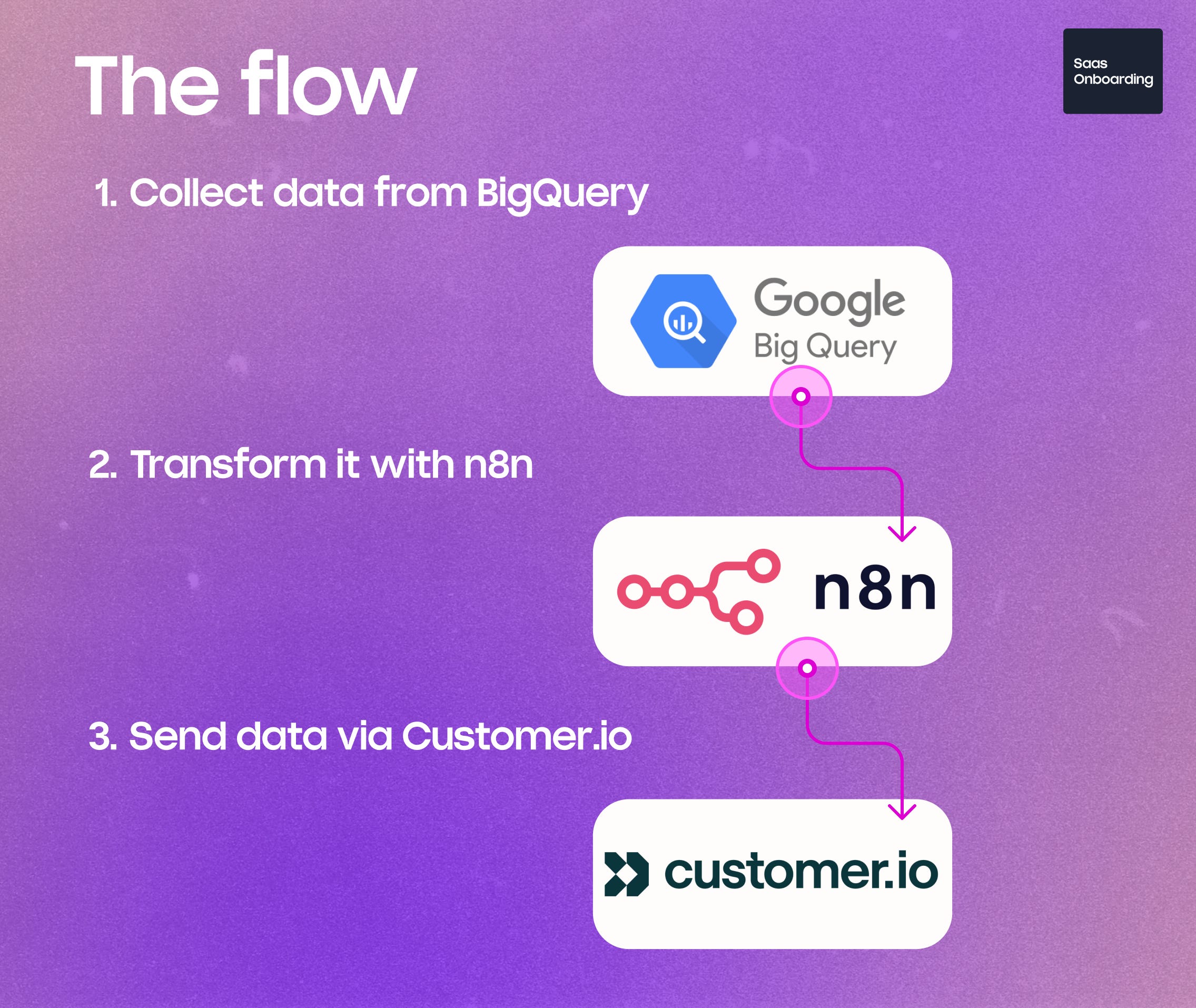
1. The tool used to create the flow
To build a similar flow at scale, you’ll need tools that help you:
Access user behavior data
→ Check with your data or tech team for access to your data warehouse (we use BigQuery).
Process and transform that data
→ You’ll need something to pull, clean, and manipulate it. I use n8n, but Clay or Make can do the job too.
Send dynamic marketing emails
→ Your email platform must accept data from a webhook. I use Customer.io, but HubSpot, Brevo, or similar tools work as well.
2. How to build the flow
The logic is actually simple:
Trigger: You send user data from your product to n8n through your marketing tool.
Query: n8n runs an SQL query on your data warehouse using that user data.
Format: The results are cleaned and formatted so they’re ready for the LLM.
Generate: The LLM processes the data and returns personalized insights.
Send: You reformat the output (to fit payload limits) and push it back into Customer.io — so it can be used in emails as naturally as possible.
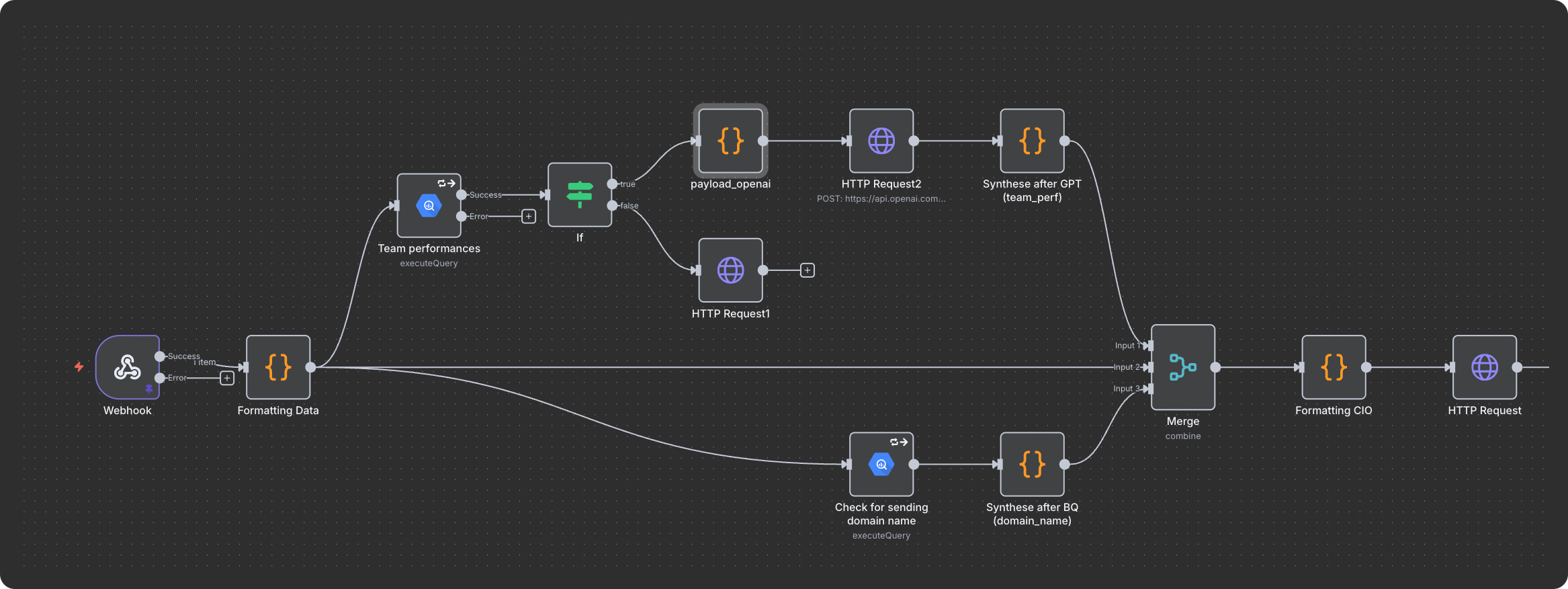
Let’s breakdown each of them:
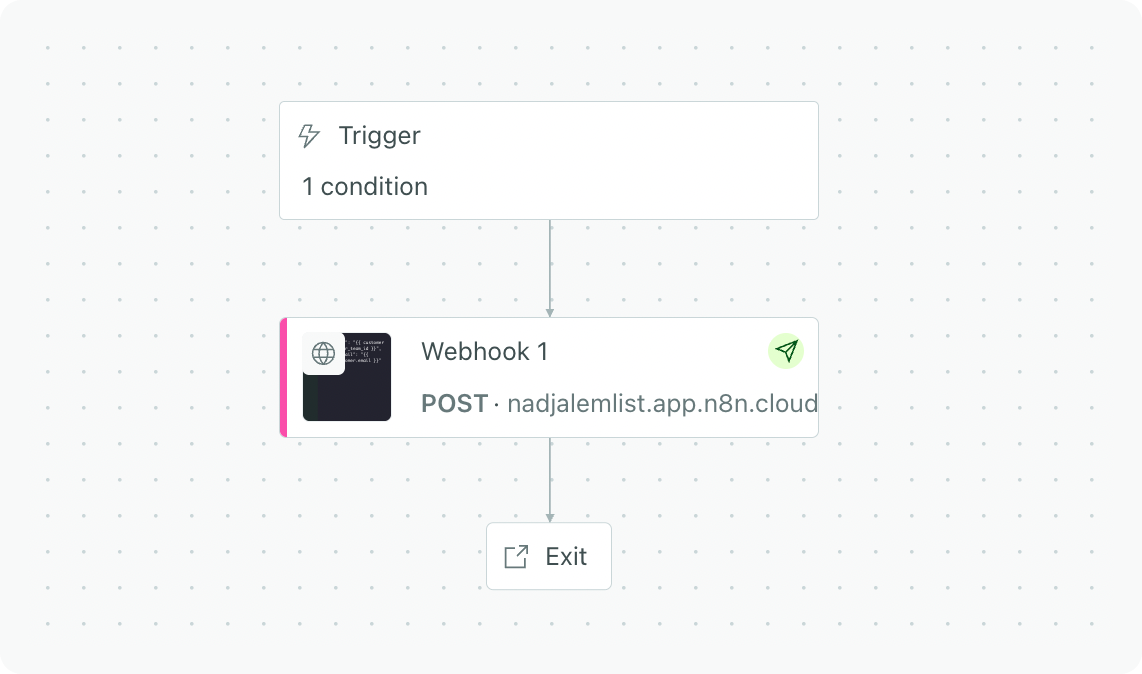
The trigger part.
When a lead enters your marketing CRM, you’ll need to decide which ones you want to push.
This part is simple. You’ll create rules based on lead attributes such as job title, persona, or plan name.
From there, you’ll use a webhook to send this data to your n8n flow. Just make sure the data is formatted in JSON.
The data that you send will be used in the SQL request to retrieve the data from that user in your database.

The query to retrieve the data
Now that your lead’s data has reached n8n, it’s time to get the context you’ll need for the email.
Here’s what happens:
The SQL node in n8n connects to your data source (it could be BigQuery, PostgreSQL, or any other database).
It runs a short query to collect key information about the user or their team, things like recent activity, usage, or performance metrics.
Keep it light.
Only fetch what’s useful for your message. You don’t need every column from your dataset just a few key stats that will help you write something meaningful.
⚠️ Common mistakes to avoid:
Pulling too much data → your flow becomes slow and unstable.
Forgetting filters → you might end up sending wrong insights to the wrong people.
💡 Pro tip:
If you’re not sure what to pull, start small, for example: number of actions taken, time since last login, or feature most used.
That’s usually enough to create personalized content.
Generate the personalized insights.
Here’s the fun part.
Once you’ve got clean data, you want to turn it into short, readable insights that make sense for your user.
This is where code or AI nodes inside n8n do the magic.
A Function node (or a Code node) cleans and prepares your data: it rounds numbers, renames fields, removes unnecessary stuff.
→ Example: “campaign_open_rate: 0.4312” becomes “Open rate: 43%.”
Then, you can add an LLM node (like OpenAI or Claude) to generate short text based on that data.
→ Example output:
“Your open rate is improving, but reply rate is still low. Try shortening your subject lines.”
You can ask the model to return the result in a clean JSON format, with 2–3 lines max.
This makes it easy to inject into your email later.
⚠️ Be careful with AI output:
Always set a word or character limit.
Avoid complex instructions.
And always validate the output with a small Code node that checks if the response is well formatted (so the flow doesn’t break).
💡 If you don’t want to use AI, you can still use simple logic rules:
“If open rate < 30% → recommend improving subject lines.”
“If no activity in 7 days → suggest sending a reminder email.”
Send the data back to Customer.io
Once your message is ready, it’s time to send it back to your email platform.
You’ll use an HTTP Request node to push the final insights back to Customer.io (or any other ESP you use).
The message is usually sent as a few custom attributes, like:
summary_text → plain text version
summary_html → formatted version for the email
timestamp → date it was generated
These attributes will automatically appear inside Customer.io and can be used directly in your email templates.
💡 Example:
If your attribute is called summary_text, you can insert it into your email body using:
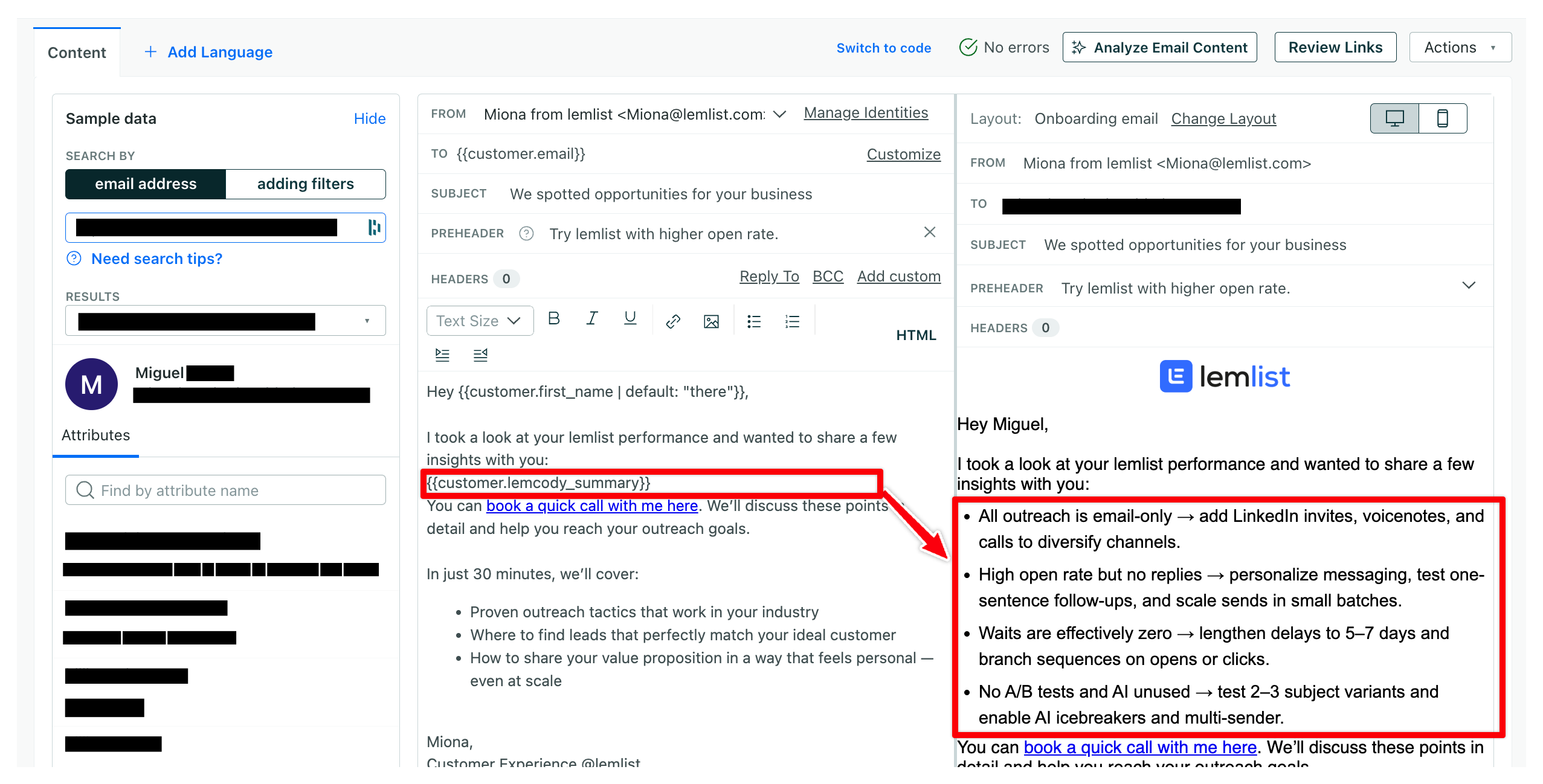
{{customer.summary_text}}
And that’s it, when the email is sent, your user receives a personalized message built entirely from their own data.
⚠️ Common mistakes to watch for:
Sending attributes that are too long (Customer.io limits size). Keep text under 1,000 characters.
Forgetting to test on dummy data first. Always try your flow with test users before going live.
Example of the final result
Here’s an example of what the output might look like once the data reaches Customer.io:
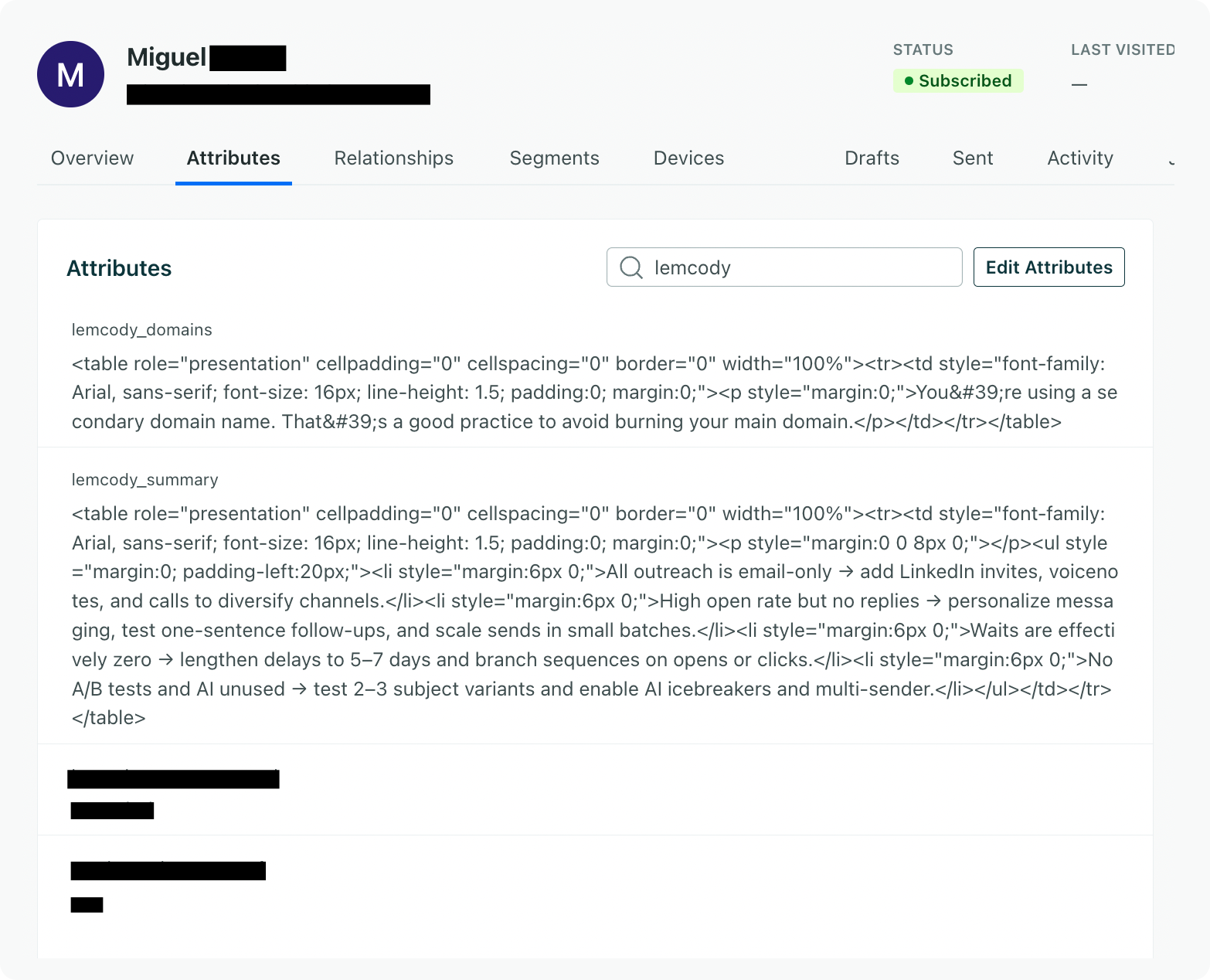
Once it’s there, all you need to do is drop it into your email template, and it’ll render beautifully.
Common pitfalls & how to fix them
Even if this flow looks simple once you see it mapped out, a few small details can break things if you’re not careful. Here’s what usually goes wrong, and how to avoid it.
1. Messy or missing data
The problem: Your webhook sends inconsistent information, sometimes a missing email, sometimes a wrong team ID.
The fix:
Ask your tech or data team to confirm which fields are always reliable.
In n8n, add an “If” node right after the trigger. If the key data is missing, stop the flow or send a simple fallback message instead of breaking the automation.
2. Pulling too much data at once
The problem: You try to fetch a full user history instead of a small snapshot. The query takes forever, or n8n times out.
The fix:
Limit your SQL query to the most recent activity or last 7 days.
If you need more, break it into two smaller flows instead of one big one.
3. AI output is too long or too random
The problem: The model sometimes writes essays, or gives advice that doesn’t fit your use case.
The fix:
Keep your prompt clear: “Write 3 short bullet points (max 20 words each). No emojis, no intros.”
After the AI node, add a small Code node that checks if the output is valid JSON and under 1,000 characters.
4. Formatting breaks in Customer.io
The problem: The text looks weird once it appears in the email, strange spacing or HTML errors.
The fix:
Always send two versions: one plain text, one HTML.
In your HTML, use simple tags like <p> or <ul> only.
Test with a few dummy users before launching to your real audience.
5. ESP limits or silent drops
The problem: You push too much data and Customer.io (or another ESP) silently cuts off your message.
The fix:
Keep each attribute below 1,000 characters.
Compress or shorten the text before sending.
If you need to send longer content, link to a page inside your product instead of embedding everything.
6. Forgetting to log errors
The problem: A node fails, but you have no idea why and the flow just stops.
The fix:
Add an Error Trigger node at the bottom of your flow.
Make it send a short Slack or email alert to your team with the user ID and error message.
That way, you can fix problems before they affect real users.
7. Making changes directly on the live flow
The problem: You edit while it’s running and accidentally break production.
The fix:
Clone your flow in n8n.
Test the new version on a “sandbox” workspace or fake user data before deploying.
💡 Final tip:
Always start small. Get one user journey working perfectly, one event, one query, one insight.
Once it runs smoothly, you can duplicate it for other use cases like activation, reactivation, or product updates.

Bonus ideas
Most teams still treat lifecycle emails like static templates. But flows like this, powered by real data and LLM logic open a whole new chapter in how we talk to users.
Here’s what this setup can also do 👇
Smarter onboarding
Instead of sending a fixed welcome sequence, imagine onboarding that adapts to what each user has (or hasn’t) done.
Did they skip setup? → Send a 1-click tutorial.
Did they already launch something? → Show advanced use cases.
This kind of adaptive flow shortens time to value dramatically.
Activation coaching at scale
Lifecycle flows can become personal coaches.
They could track user actions, identify friction (like “no campaign launched in 3 days”), and send contextual help (video, doc, or community example) automatically.
Real-time retention loops
Your product already knows when engagement is dropping.
Why not trigger a personalized “what changed?” email that re-engages users before they churn?
Not with discounts, but with tailored insights: “You sent 40% fewer messages this week, here’s why it matters.”
Expansion & upsell without pressure
Instead of static pricing reminders, lifecycle emails can surface usage milestones:
“You’ve hit 97% of your plan capacity for 3 month in a raw, here’s how teams like yours upgraded.”
Upsell feels natural when it’s data-backed and contextual.

👉 The ultimate goal for any SaaS company, is to have a proactive lifecycle, not reactive.
This kind of setup isn’t common yet. Most teams are still sending static “tips & tricks” flows.
But as AI keeps progressing, and as data pipelines become easier to automate, this will become the new standard for how SaaS products engage, activate, and retain users.